Modals and Windows
Modals and Windows provide a way to create custom dialog boxes and floating windows in NovelAI. They can be used to display information, gather user input, or provide additional functionality for your scripts. Modals are centered dialog boxes that block interaction with the rest of the UI until closed, while Windows are floating panels that can be moved around and allow interaction with other parts of the UI. They are created using the api.v1.ui.modal.open and api.v1.ui.window.open functions respectively.
Other than their positioning and interaction model, Modals and Windows share similar structure and capabilities. Both can contain arbitrary UI content defined using UI Parts. For more information on UI Parts please see the UI Parts documentation.
Creating a Modal
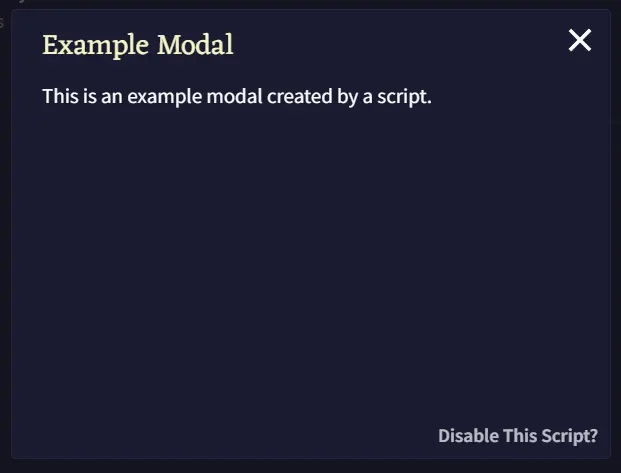
To create a modal, use the api.v1.ui.modal.open function. This function takes an object defining the modal’s properties, including its title, content, and size. Here is an example of creating a simple modal:
let modal = api.v1.ui.modal.open({
  title: 'Example Modal',
  content: [
    {
      type: 'text',
      text: 'This is an example modal created by a script.'
    },
  ],
  size: 'small'
});
A modal returns an object that can be used to interact with the modal after it’s been created. You can close the modal programmatically using the close method, update the modal with the update method, or await the closed promise to perform actions after the modal is closed.
Creating a Window
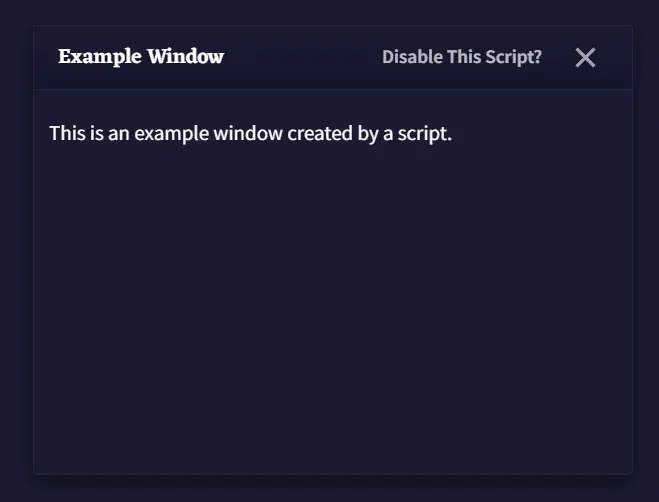
To create a window, use the api.v1.ui.window.open function. This function takes an object defining the window’s properties, including its title, content, and size. Here is an example of creating a simple window:
let wndw = api.v1.ui.window.open({
  title: 'Example Window',
  content: [
    {
      type: 'text',
      text: 'This is an example window created by a script.'
    },
  ],
  defaultHeight: 300,
  defaultWidth: 400
});
A window returns an object that can be used to interact with the window after it’s been created. You can close the window programmatically using the close method, update the window with the update method, or await the closed promise to perform actions after the window is closed.
Disable This Script?
All modals and windows created by scripts will have a “Disable This Script?” button. It appears in the bottom right of modals and in the title bar of windows. Clicking this button will immediately disable the script that created the modal or window and close it and any other modals or windows created by that script.
See Also
- UI Parts - Building content for modals and windows
- UI Extensions - Other ways to create UI
- API Reference - Complete API documentation