Prompt Chunks
Prompt Chunks allow you to save parts of your prompts for later use as building blocks, similar to the Add Quality Tags Toggle or the different Undesired Content Presets. This means you can easily reuse your favorite sets of tags without having to copy and paste them all the time.
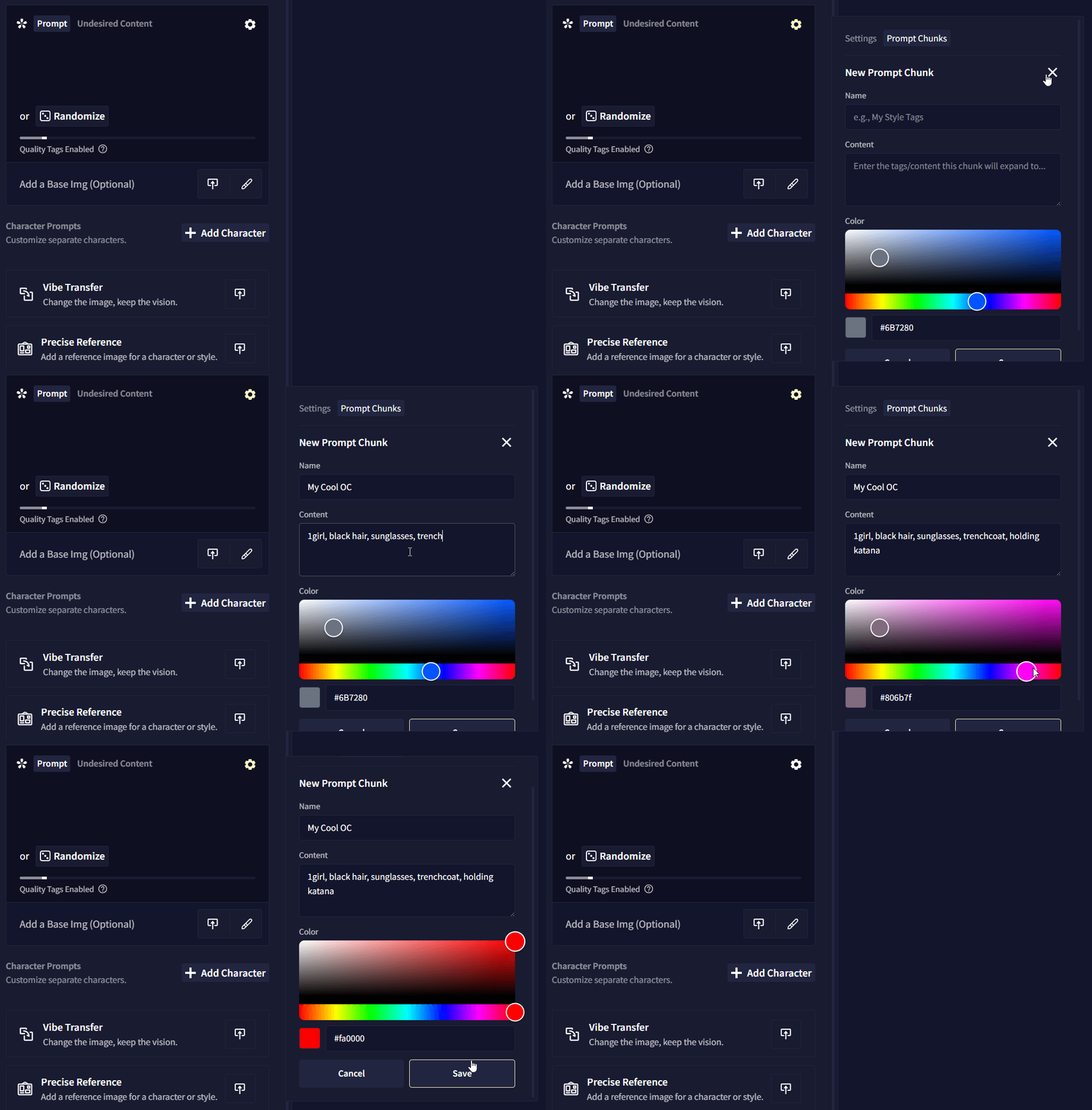
To access Prompt Chunks, click on the gear icon in the left sidebar and navigate to the Prompt Chunks tab.
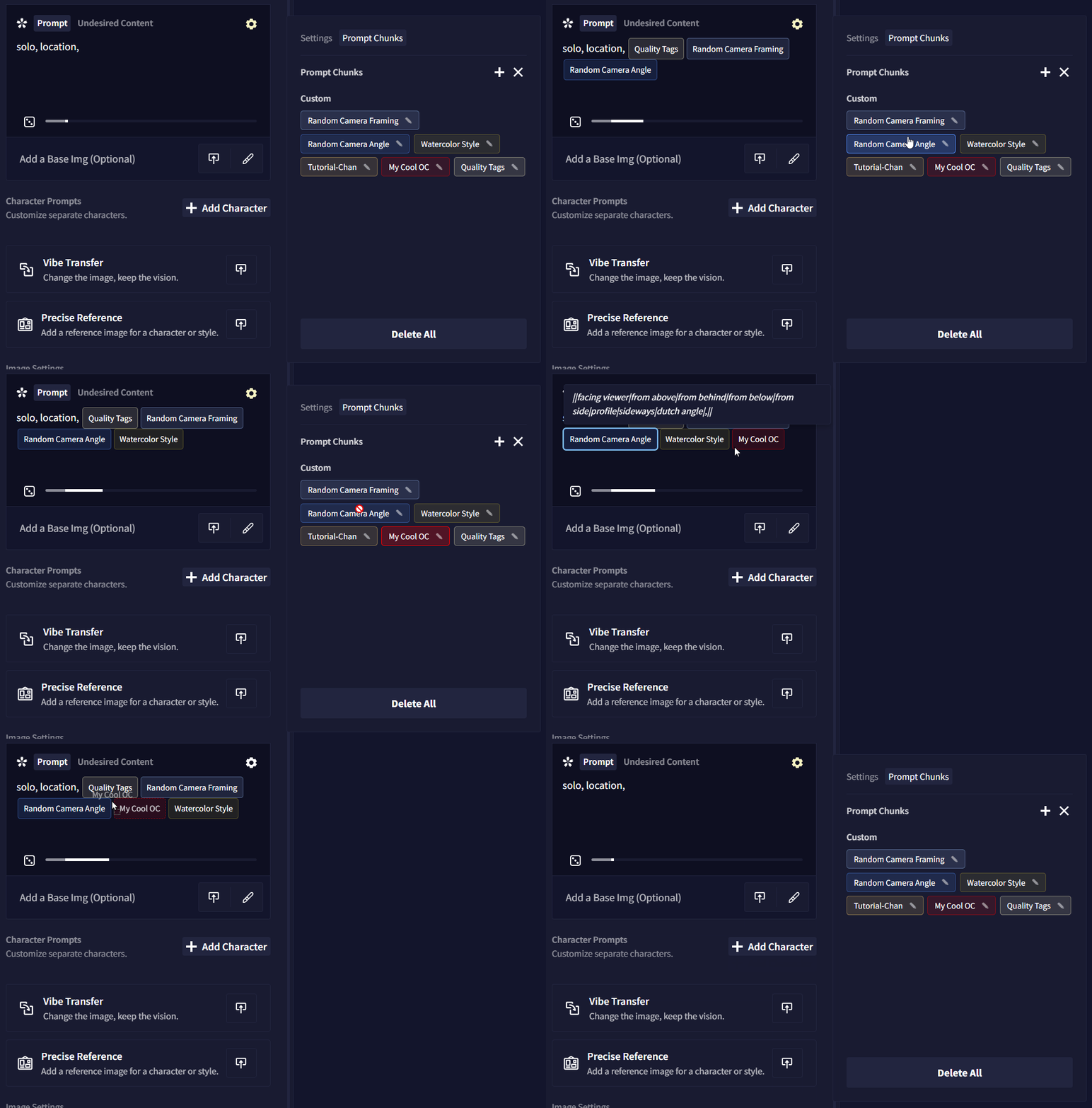
Clicking a chunk will display it’s contents, double-clicking the chunk will expand it and turn the contents back into regular text. Prompt chunks can be dragged from the chunks window and dropped inside the prompt field.
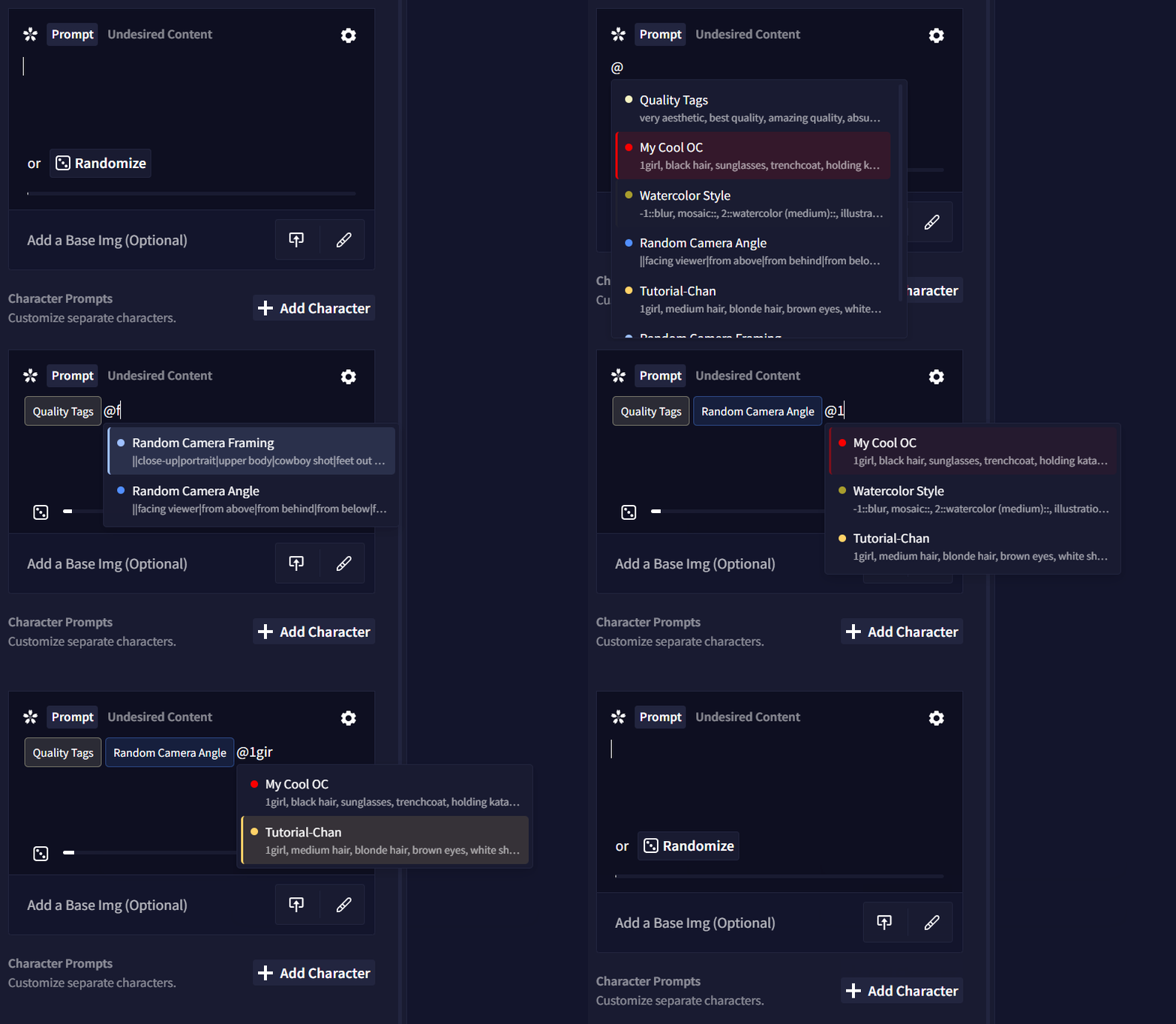
If you type @ in the prompt field a list of your saved Prompt Chunks will appear, and as you continue typing the list will filter and display relevant chunks.
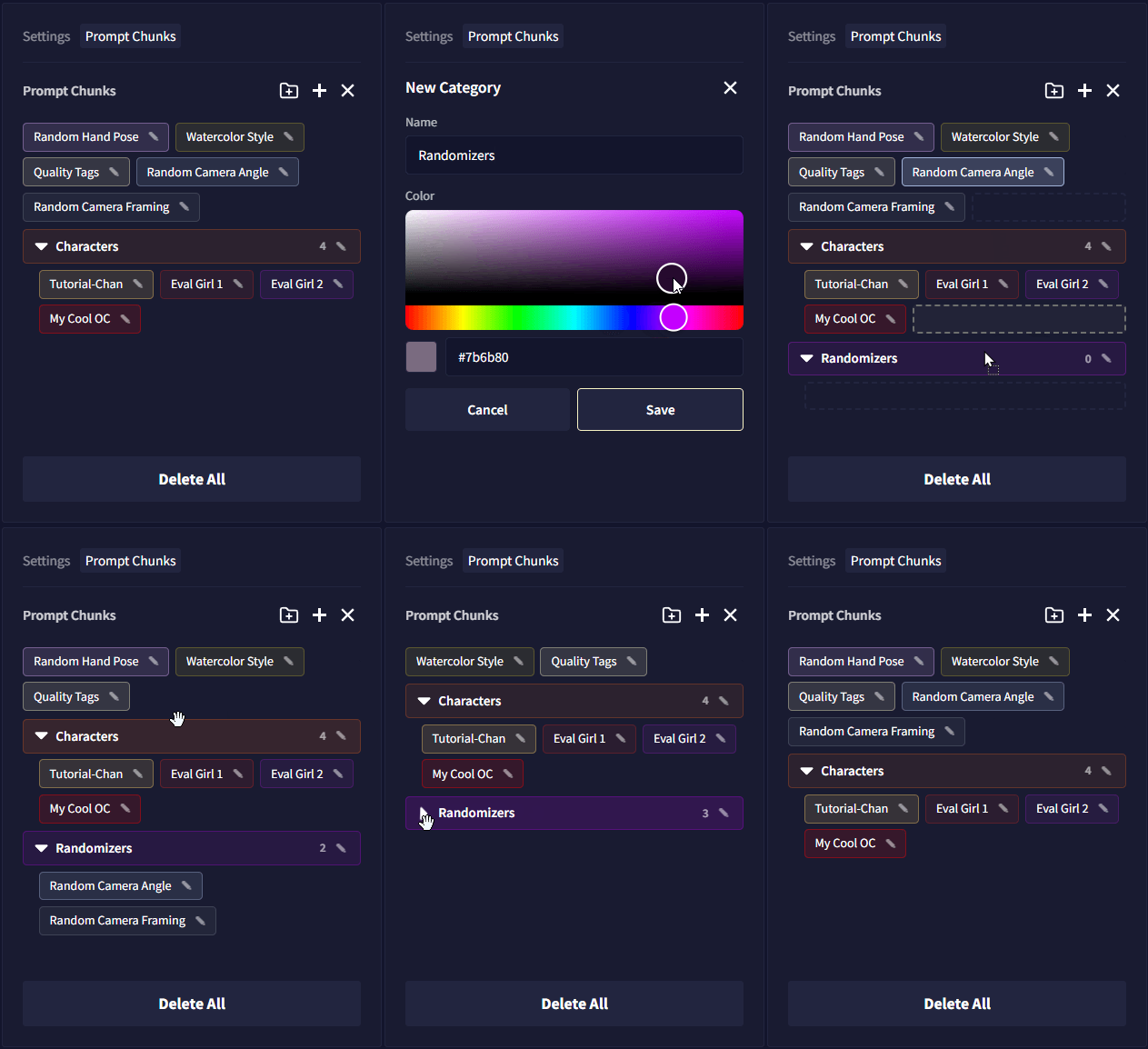
You can also create categories to organize your prompt chunks into by clicking the folder icon. Then, you can just drag and drop your chunks to reorganize them or store them inside a category.
Anything you type in the prompt field can be saved as a Prompt Chunk. A group of hairstyle and clothing tags could be grouped into a chunk representing a character. A set of tags that evoke a specific artstyle can also be a good chunk to have on hand. You can even have several Prompt Randomizer sections saved up since typing them by hand more than once is cumbersome.
For example: ||facing viewer|from above|from behind|from below|from side|profile|dutch angle||, will choose from a selection of different camera angle tags.
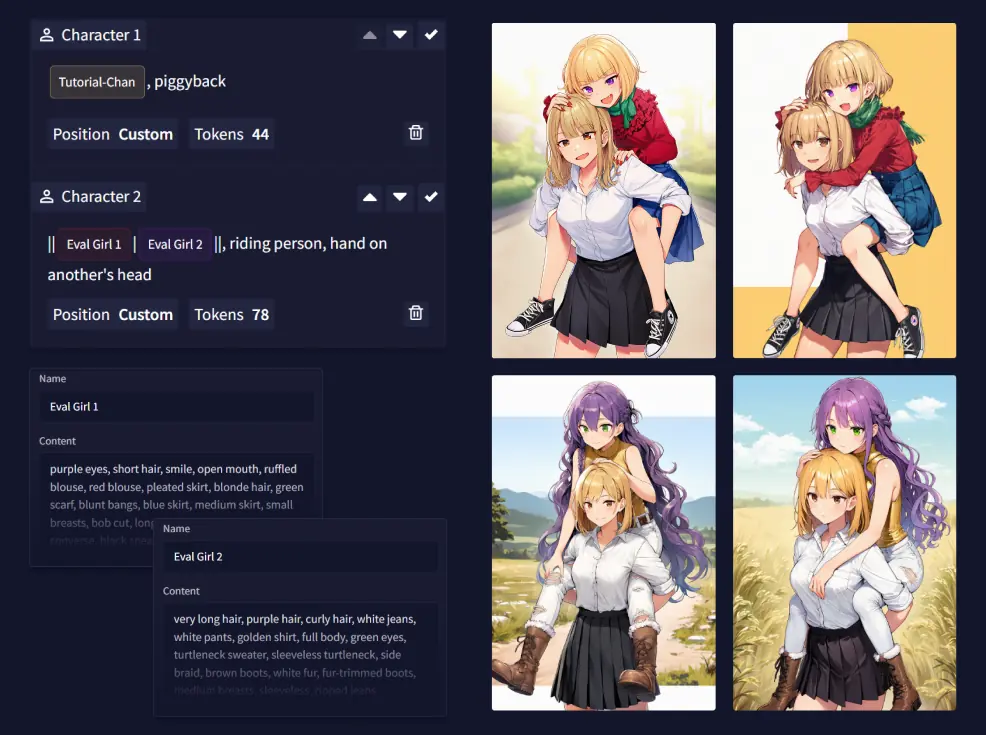
You can also have a couple of characters saved as Prompt Chunks to then combine them randomly using Multi-Character Prompting.
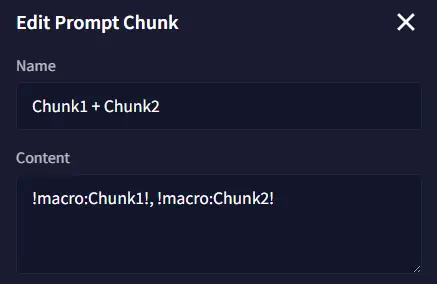
Prompt Chunks can also be nested inside other chunks. To do this use the following format: !macro:YourChunkName!, replacing “YourChunkName” with the name of whichever chunk you wish to use. Keep in mind that chunk names are case-sensitive.
As a recommendation, be cautious when nesting chunks that contain single | icons since they may trigger multi-character prompts, or chunks containing numerical emphasis without a :: closing it.
It’s also good practice to end your chunks with a comma to make sure your chunks are always separated, even if you already add commas between your chunks since double commas are automatically cleaned up before generating.
Lastly, Prompt Chunks are stored server side, so you can access them from any device or browser when logged in.
Prompt Chunks by themselves aren’t saved in the image metadata, just the content of the chunks. However, when importing an image, should your prompt contain the chunk’s content that specific segment will be automatically replaced with the chunk itself. This will only happen if you have a saved chunk with those same contents.